Want to keep your private apps away from curious eyes?
Whether it’s Photos, Messages, WhatsApp, banking apps or social media, your iPhone can contain a lot of personal information. If someone knows your device passcode or frequently borrows your phone, you may want an additional layer of privacy.
Fortunately, newer versions of iOS offer built-in options to lock and hide apps on iPhone without installing a third-party app.
The process is also surprisingly simple.
In this guide, we’ll explain how to lock apps on iPhone in 2026, how to hide apps, what happens when an app is locked, and what alternatives you can use when the built-in option isn’t available.
Note: App locking and hiding features depend on your iPhone model and iOS version. Some options require a compatible version of iOS.
Can You Lock Apps Directly on an iPhone?
Yes.
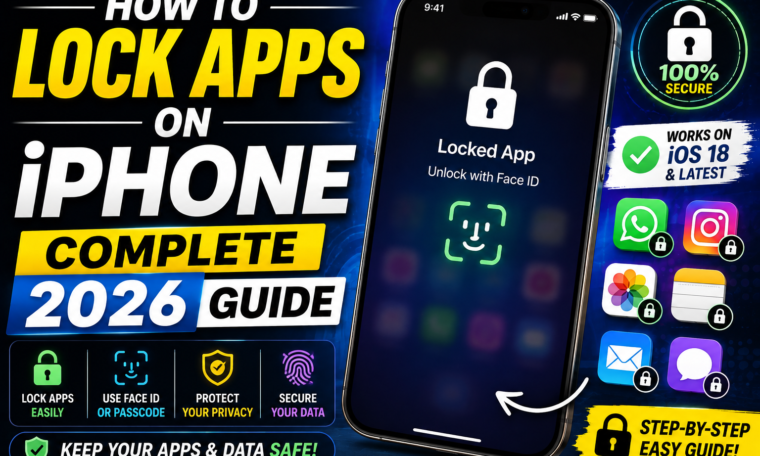
On supported iPhones running newer versions of iOS, you can lock many apps using Face ID, Touch ID or your device passcode.
This is an important improvement because you don’t necessarily need a separate app-lock application.
The feature is built into iOS itself.
Once an app is locked, authentication can be required before someone can open it.
That means handing your unlocked iPhone to someone doesn’t automatically give them access to everything you’ve installed.
How to Lock an App on iPhone
The easiest method is built directly into the Home Screen.
Step 1: Find the App
Go to your iPhone’s Home Screen or App Library.
Find the app you want to protect.
Step 2: Press and Hold
Touch and hold the app icon.
A menu will appear.
Step 3: Choose the Lock Option
Look for an option similar to:
Require Face ID
On devices using Touch ID, the wording may reference Touch ID instead.
Step 4: Authenticate
Your iPhone will ask you to confirm your identity using Face ID, Touch ID or your passcode.
Once confirmed, the app is locked.
Step 5: Test It
Close the app and try opening it again.
Your iPhone should request authentication before providing access.
That’s it.
You don’t need to download another app or create a complicated shortcut.
How Does iPhone App Lock Work?
When you lock an app, iOS adds an authentication requirement.
For example, if you lock a messaging application, someone using your already-unlocked iPhone may still be able to see that the app exists, but opening it requires authentication.
This provides an extra privacy layer.
It is particularly useful when:
- Someone borrows your phone
- You share your device temporarily
- You want to protect private messages
- You use financial apps
- You store personal information
- You want additional privacy for social media
However, app locking isn’t a replacement for securing your entire iPhone.
Your device passcode and Apple Account security remain extremely important.
How to Unlock a Locked App
Unlocking is just as easy.
Simply tap the locked app.
Your iPhone will request authentication.
Use:
Face ID, Touch ID, or your iPhone passcode, depending on your device and settings.
Once authentication succeeds, the app opens normally.
You don’t need to enter a separate password every time.
That’s one of the biggest advantages of Apple’s built-in app lock feature.
How to Remove an App Lock
Changed your mind?
You can remove the lock whenever you want.
Follow These Steps:
- Find the locked app.
- Press and hold its icon.
- Choose the option to remove the authentication requirement.
- Authenticate using Face ID, Touch ID or your passcode.
The app will return to its normal behaviour.
This makes the feature flexible.
You can lock certain apps only when you feel additional privacy is necessary.
How to Hide Apps on iPhone
Here’s where things become even more interesting.
On supported versions of iOS, you can not only lock certain apps but also hide apps.
A hidden app won’t remain visible in the usual Home Screen layout.
To Hide an App:
- Press and hold the app icon.
- Select the option to require Face ID or equivalent authentication.
- Choose the option to Hide and Require Face ID when available.
- Authenticate.
- Confirm that you want to hide the app.
The app is then moved to a dedicated hidden area in the App Library.
This is useful when you don’t even want the app’s icon sitting openly on your Home Screen.
Where Do Hidden Apps Go?
Hidden apps aren’t permanently deleted.
Instead, iOS places them in a dedicated Hidden folder within the App Library on supported versions.
To access the hidden section, open the App Library and authenticate.
Your hidden apps should then become available.
This is different from deleting an app.
The application and its data remain on your iPhone unless you choose to remove them separately.
What Happens to Notifications From Locked Apps?
Privacy doesn’t stop at the app icon.
Notifications can potentially reveal sensitive information.
When using app locking or hiding features, iOS may change how certain information is displayed or handled.
However, notification behaviour can depend on the app and your individual notification settings.
For extra privacy, review:
Settings → Notifications
Select the relevant app and check its notification settings.
You can adjust whether notifications appear on the Lock Screen and whether previews are shown.
For particularly sensitive apps, limiting message previews can prevent private information from appearing when your phone is locked.
Can You Lock Photos on iPhone?
The Photos app deserves special attention because it can contain highly personal images.
Apple already provides Hidden and Recently Deleted albums that can be protected with device authentication on supported versions of iOS.
You can hide individual photos or videos without deleting them.
Then, access to the relevant protected album can require Face ID, Touch ID or your passcode.
This provides a useful alternative if your main goal is protecting personal images rather than locking the entire Photos app.
Can You Lock WhatsApp on iPhone?
Yes, but there’s an important distinction.
Some individual apps provide their own built-in authentication options.
For example, WhatsApp has offered app-level locking features that can require Face ID to open the application.
Therefore, if you want to protect WhatsApp, check its privacy settings as well as Apple’s iPhone-level options.
Using an app’s built-in security feature can provide an additional layer of protection.
Can You Lock Banking Apps?
Many banking applications already use biometric authentication.
Depending on the bank and application, you may be able to use Face ID or Touch ID before accessing your account.
This means you can have multiple security layers:
iPhone passcode → App authentication → Banking authentication
For financial applications, enable every legitimate security feature that fits your needs.
Also make sure your banking app is downloaded from the official App Store and kept updated.
What If Your iPhone Doesn’t Show the Lock App Option?
Don’t worry.
The feature may not be available because of your iOS version, iPhone model or the particular app.
First, check whether your iPhone is running a compatible version of iOS.
Go to:
Settings → General → Software Update
If an update is available, review it and install it if appropriate.
Also remember that not every Apple system app or third-party app necessarily supports the same locking behaviour.
Use Screen Time as an Alternative
Before Apple introduced native app locking, many users relied on Screen Time as a workaround.
Screen Time can still be useful for managing access and limiting how much time you spend in certain applications.
Go to:
Settings → Screen Time
You can configure app limits and other restrictions.
However, Screen Time isn’t exactly the same as Apple’s native app-lock feature.
If your goal is straightforward privacy, the built-in Require Face ID option is generally more convenient when available.
Can You Lock Every App on iPhone?
Not necessarily.
Apple’s app-locking functionality has restrictions regarding which applications can be locked or hidden.
Some system applications may behave differently from ordinary third-party apps.
Therefore, don’t assume that every app can be protected in exactly the same way.
If the lock option doesn’t appear when you press and hold an app, check whether that particular application supports the feature.
Best Apps to Lock on Your iPhone
You don’t need to lock everything.
Instead, focus on applications containing information you consider private.
Messaging Apps
Messages and other communication apps may contain personal conversations.
Banking Apps
Financial information deserves strong protection.
Photos
Your photo library can contain sensitive images and documents.
Social Media
Social accounts can contain private messages and personal information.
Notes
The Notes app may contain personal ideas, documents or other sensitive information.
Email accounts can provide access to numerous other services.
Password Managers
Protecting stored credentials is especially important.
iPhone App Lock vs Hiding an App
These two features are related but different.
| Feature | App Lock | Hide App |
|---|---|---|
| Requires authentication | Yes | Yes |
| App stays visible | Usually | No |
| App remains installed | Yes | Yes |
| Useful for privacy | Yes | Yes |
| Access through App Library | Yes | Yes |
| Deletes app | No | No |
If you don’t mind seeing the app icon, locking it may be enough.
If you don’t want the application displayed openly, hiding it can provide an additional layer of privacy.
iPhone Privacy Tips Beyond App Locking
App locking is only one part of smartphone security.
For stronger overall protection, consider these habits:
Use a Strong Passcode
Avoid simple or predictable passcodes.
Enable Face ID
Face ID provides convenient biometric authentication on supported iPhones.
Turn On Stolen Device Protection
This can provide additional security for certain sensitive actions if your iPhone is stolen.
Review App Permissions
Check which apps have access to your photos, location, microphone and camera.
Enable Two-Factor Authentication
Protect your Apple Account with two-factor authentication.
Keep iOS Updated
Software updates often include security improvements and bug fixes.
Avoid Sharing Your Passcode
Your passcode is the foundation of your device’s security.
Is Apple’s Built-In App Lock Safe?
Using Apple’s built-in app authentication is generally preferable to installing an unknown third-party app that claims to lock other applications.
Why?
Third-party “app locker” applications on iOS often cannot provide the same system-level control as Android-style app lockers because of Apple’s platform restrictions.
Instead, they may rely on workarounds such as Screen Time or shortcuts.
Whenever Apple provides a native privacy feature, using the built-in option can be simpler and more trustworthy.
Final Thoughts
Learning how to lock apps on iPhone is one of the easiest ways to add another layer of privacy to your device.
On supported iPhones and iOS versions, Apple’s built-in app-locking feature allows you to require Face ID, Touch ID or a passcode before opening compatible applications. You can also hide supported apps from your regular Home Screen if you want additional privacy.
The feature is particularly useful for messaging, banking, photos, email, notes and social media apps.
Still, don’t stop at app locking.
A strong device passcode, Face ID, two-factor authentication, Stolen Device Protection, updated software and carefully managed app permissions all work together to create better iPhone security.
Most importantly, remember that privacy isn’t about hiding everything. It’s about deciding who can access your information and when.
So, take a few minutes today to review your iPhone’s privacy settings and lock the apps that contain your most sensitive information.