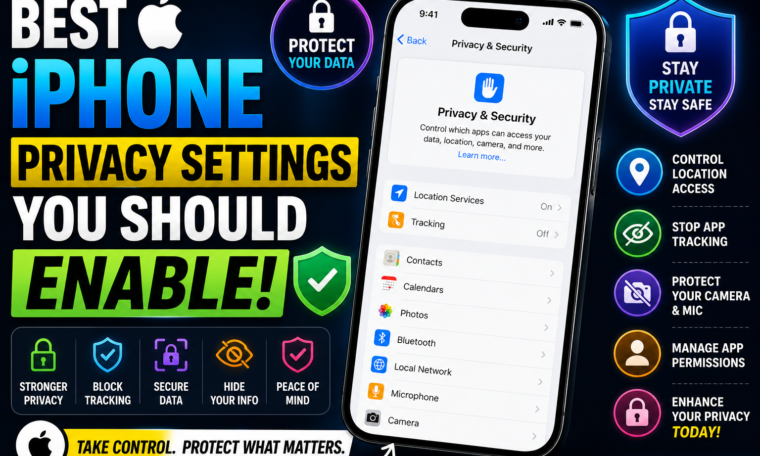
Best iPhone Privacy Settings You Should Enable in 2026
Your iPhone contains an enormous amount of personal information.
Think about it. Your photos, messages, contacts, location history, passwords, financial apps and browsing activity may all live on one device you carry everywhere.
That’s why iPhone privacy settings deserve more attention than they usually get.
Apple provides a wide range of privacy and security controls, but many users leave the default settings untouched. While Apple’s defaults are designed with privacy in mind, reviewing your permissions can help you understand exactly what apps and services can access.
The good news is that you don’t need to be a technology expert.
A few minutes inside the Settings app can help you control app tracking, location access, camera permissions, microphone access, photos, passwords and more.
So, if you’re wondering how to improve iPhone privacy in 2026, here are 15 important settings worth checking.
Note: Menu names and available features can vary depending on your iPhone model and iOS version.
1. Turn Off Unnecessary App Tracking
One of the most important privacy controls on your iPhone is App Tracking Transparency.
Apps can request permission to track your activity across other companies’ apps and websites for advertising or measurement.
You can manage these requests under:
Settings → Privacy & Security → Tracking
If you don’t want apps asking for permission to track you, you can turn off Allow Apps to Request to Track.
This doesn’t mean every form of online tracking disappears. However, it gives you greater control over whether apps can request permission for this particular type of tracking.
2. Review Location Services
Your location can reveal a lot about your daily life.
Restaurants you visit, places you work, your home area and destinations you travel to can all create sensitive information.
Go to:
Settings → Privacy & Security → Location Services
Review the apps listed there.
For each app, choose the access level that makes sense.
You may see options such as:
- Never
- Ask Next Time Or When I Share
- While Using the App
- Always
If an app doesn’t genuinely need your location, consider choosing Never.
For apps that only need location while you’re actively using them, While Using the App can be a sensible choice.
3. Disable Precise Location When It Isn’t Necessary
Here’s another location setting many people overlook.
Some apps don’t need your exact location.
For example, a weather app may only need to know your general area rather than your precise position.
When an app doesn’t require exact location information, turn off Precise Location.
You can find this option when reviewing an individual app under Location Services.
This allows the app to receive an approximate location instead.
As a result, you can maintain useful functionality while sharing less precise information.
4. Check Which Apps Can Access Your Photos
Your photo library can contain highly personal information.
It may include family photos, documents, screenshots, travel details and other sensitive content.
Go to:
Settings → Privacy & Security → Photos
Review which apps have photo access.
If an app only needs one or two pictures, consider using the limited photo access option where available instead of giving it access to your entire library.
This is a simple way to follow the principle of sharing only what an app actually needs.
5. Review Camera Permissions
Many apps request camera access.
Social media platforms, video apps, scanning tools and communication apps may need it. However, an app that doesn’t require your camera should not necessarily have access.
Go to:
Settings → Privacy & Security → Camera
You’ll see apps that have requested camera permission.
Turn off access for apps that don’t need it.
When an app attempts to use your camera, iOS also provides privacy indicators to help you understand when camera access is occurring.
6. Check Microphone Permissions
Your microphone deserves the same attention.
Go to:
Settings → Privacy & Security → Microphone
Review the list and disable microphone access for apps that don’t genuinely require it.
For example, a video-calling application may need microphone access, while a simple utility app might not.
Remember, removing permission can affect an app’s functionality.
Therefore, don’t disable access blindly. Instead, consider whether the feature actually needs your microphone.
7. Review Contacts Access
Your contact list is another valuable piece of personal information.
Some apps request access to your contacts for social connections, invitations or communication features.
Go to:
Settings → Privacy & Security → Contacts
Then review the apps listed.
If you no longer use an app, or don’t understand why it needs your contacts, reconsider its access.
Sharing fewer personal details with third-party apps can reduce unnecessary exposure.
8. Use Safety Check
If you want a broader privacy review, Safety Check can be extremely useful on supported iPhones.
You can find it under:
Settings → Privacy & Security → Safety Check
Safety Check is designed to help you review sharing and access.
It can be particularly useful if you’ve changed relationships, devices, accounts or other circumstances and want to quickly review who or what has access to your information.
The feature can help you understand sharing permissions instead of forcing you to search through every setting individually.
9. Turn On Stolen Device Protection
Your iPhone can contain enough personal information to make device theft particularly concerning.
Apple’s Stolen Device Protection is designed to add additional security when your iPhone is away from familiar locations.
You can find it under:
Settings → Face ID & Passcode → Stolen Device Protection
When enabled, certain sensitive actions can require additional authentication or security delays.
This makes it harder for someone who knows your passcode to make critical account or security changes.
If your iPhone supports this feature, it’s worth reviewing.
10. Use a Strong Passcode
Your passcode is one of the most important security barriers protecting your iPhone.
A simple four-digit code may be easier to remember, but a stronger passcode can provide better protection.
Go to:
Settings → Face ID & Passcode
Then choose Change Passcode.
Depending on your device, you can select a custom alphanumeric code or another stronger passcode option.
Avoid obvious combinations such as birthdays, repeated numbers or simple sequences.
Also, don’t share your passcode casually.
11. Turn On Two-Factor Authentication for Your Apple Account
Your Apple Account is closely connected to your digital life.
It can provide access to services such as iCloud, photos, backups and other Apple services.
That’s why two-factor authentication is important.
With two-factor authentication enabled, signing in from a new device generally requires an additional verification step.
Check your Apple Account settings and make sure your trusted phone numbers and devices are current.
This provides an important layer of protection beyond your password.
12. Review App Privacy Report
Want to know what apps have been doing with the permissions you’ve granted?
Check App Privacy Report under:
Settings → Privacy & Security → App Privacy Report
When available and enabled, this feature can provide information about app access to data and sensors as well as network activity.
It can help you spot unexpected patterns.
For example, if an app you’ve barely used appears frequently in your privacy report, that might encourage you to review its permissions.
13. Disable Location-Based Apple Advertising
If you want to reduce personalised advertising based on Apple’s location-related information, review your privacy settings for Apple advertising and location services.
You can find relevant controls within:
Settings → Privacy & Security
The exact menu structure can vary between iOS versions.
Remember that turning off personalised advertising doesn’t necessarily mean you’ll see fewer advertisements.
Instead, it can affect how relevant those advertisements are to you.
14. Protect Your Lock Screen
Your iPhone can display information on the Lock Screen even when the device is locked.
Depending on your settings, notifications, widgets and certain controls may reveal information.
Go to:
Settings → Face ID & Passcode
Then review the Allow Access When Locked section.
You can disable features you don’t want accessible from the Lock Screen.
For greater privacy, consider limiting sensitive notification previews as well.
That way, private message content isn’t automatically visible to anyone looking at your locked phone.
15. Turn Off Automatic Password Sharing Where Appropriate
Modern iPhones can securely manage passwords and passkeys.
That’s convenient, but you should still review your saved credentials periodically.
Open the Passwords app on supported iOS versions and review your accounts.
Remove old credentials you no longer need and pay attention to Apple’s security recommendations.
Also, avoid storing sensitive passwords in unsecured notes or messages.
Using Apple’s built-in password management tools can be more secure than relying on plain-text storage.
Bonus: Review Bluetooth and Local Network Permissions
Privacy isn’t limited to photos and location.
Apps can also request access to your local network.
Go to:
Settings → Privacy & Security → Local Network
Review which apps have access.
Similarly, keep Bluetooth permissions under review where applicable.
An app may need Bluetooth access to communicate with accessories, but another app might not require it.
Again, the goal isn’t to disable everything.
It’s about understanding which apps have access and deciding whether that access is necessary.
How Often Should You Check iPhone Privacy Settings?
You don’t need to review your privacy settings every day.
However, checking them periodically is a good habit.
A practical schedule is:
Every few months: Review app permissions.
After installing many apps: Check camera, microphone, location and photo access.
After deleting apps: Make sure unwanted permissions are no longer relevant.
After a major iOS update: Review important privacy and security settings.
After losing or replacing a device: Check your Apple Account and trusted devices.
This small habit can help you maintain better control over your personal information.
iPhone Privacy Settings Checklist
Here’s a quick checklist you can save:
- ✅ Review App Tracking permissions
- ✅ Check Location Services
- ✅ Disable Precise Location when unnecessary
- ✅ Review Photos access
- ✅ Check Camera permissions
- ✅ Check Microphone permissions
- ✅ Review Contacts access
- ✅ Explore Safety Check
- ✅ Enable Stolen Device Protection
- ✅ Use a strong passcode
- ✅ Enable two-factor authentication
- ✅ Review App Privacy Report
- ✅ Check Apple advertising privacy settings
- ✅ Protect Lock Screen information
- ✅ Review saved passwords and passkeys
- ✅ Check Local Network permissions
Common iPhone Privacy Mistakes to Avoid
Even the strongest privacy settings won’t help much if you make basic security mistakes.
Using an Easy Passcode
Avoid predictable numbers.
Giving Every App Every Permission
An app doesn’t automatically deserve access simply because it requests it.
Ignoring Old Apps
Delete applications you no longer use.
Sharing Your Passcode
Treat your passcode as sensitive information.
Clicking Suspicious Links
Privacy and security also depend on your online behaviour.
Ignoring Apple Account Alerts
Unexpected sign-in notifications should be taken seriously.
Final Thoughts
Your iPhone isn’t just a phone. For many people, it’s a digital wallet, photo album, communication device, personal assistant and gateway to important online accounts.
That’s why spending a few minutes reviewing your iPhone privacy settings can be worthwhile.
Start with the essentials: check location permissions, review photo access, limit unnecessary camera and microphone permissions, strengthen your passcode and enable Stolen Device Protection where supported.
Next, explore Safety Check and App Privacy Report to get a clearer picture of how your information is being shared and accessed.
Most importantly, remember that privacy isn’t about turning off every feature.
It’s about making informed choices about what you share, with whom you share it and why.
As iOS continues to evolve in 2026, regularly reviewing your privacy and security settings is one of the simplest ways to keep greater control over your digital life.
Your iPhone already gives you many privacy controls—the key is knowing where to find them and actually using them.